Qualtrics: Building Accessible Surveys
Qualtrics is a powerful online survey platform available to all UND faculty, staff, and students for academic use. It allows users to create, distribute, and analyze surveys with a wide range of customizable features. In support of inclusive practices, Qualtrics also offers tools to help you build accessible surveys that are usable by all respondents, including those with disabilities.
Explore Resources on Qualtrics
Activate the New Survey Taking Experience
Qualtrics offers a new survey taking experience that simplifies the survey building process by limiting customization options. This experience is optimized for mobile use, aligns with WCAG 2.1 AA guidelines, and uses streamlined themes that reduce the need for manual accessibility customization.
Activating the new survey taking experience is quick and easy!
- Open an existing survey or create a new one.
- Select Look and Feel (paint brush icon) from the left toolbar. A pop-up dialogue box will display asking if you would like to activate the New Survey Taking Experience.
- When prompted, click Get Started to enable the new experience.
- Choose from one of the limited branded Themes available to you. There will no longer be a Layout option available in the Look and Feel menu.
- Apply your selected theme to the survey.
Note: The New Survey Taking Experience must be activated individually for every survey. It does not apply automatically to all surveys.
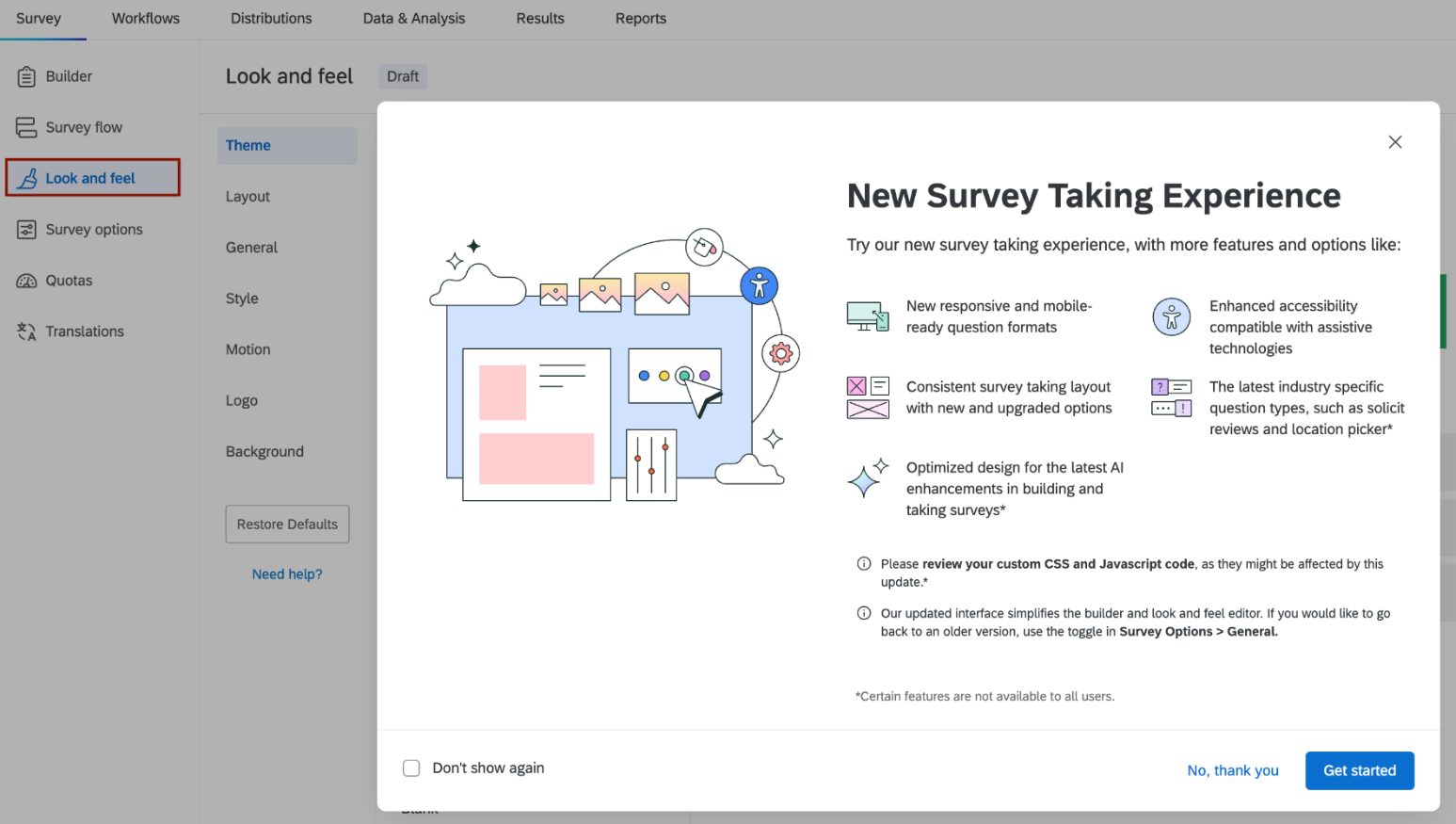
When you click Look and Feel in the left toolbar, a pop-up dialog box appears. Select Get Started to enable the New Survey Taking Experience.
What happens if I don't see the Pop-Up box?
If the activation pop-up does not appear, it may have been dismissed previously. To enable the New Survey Taking Experience manually:
- Open your survey.
- Select Survey Options from the left toolbar.
- Under General Options, locate the New Survey Taking Experience setting.
- Toggle the option on.
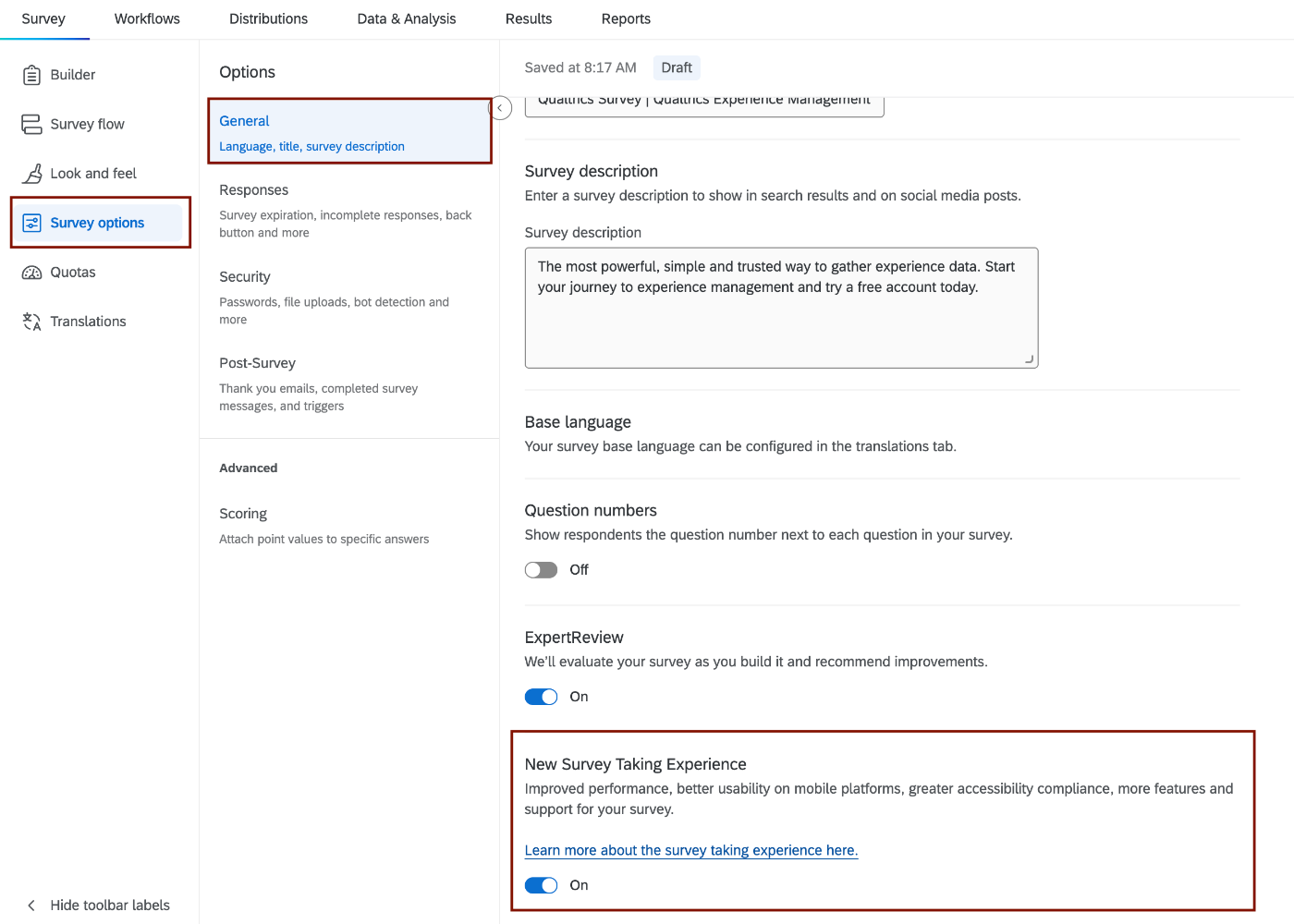
Manually enable the New Survey Taking Experience in Survey Options on the left toolbar.
For more information on how the New Survey Taking Experience increases accessibility, see Qualtrics' New Survey Taking Experience help article.
Build an Accessible Survey
Designing accessible surveys ensures that all users, regardless of ability, can participate meaningfully. Start by watching Qualtrics’ Quick Start video on Accessible Survey Design, then explore the recommendations below to promote accessibility in your Qualtrics surveys.
Not all question types in Qualtrics are accessible. When building your survey, choose formats that can be easily navigated using a screen reader or keyboard.
Question Types Incompatible with the New Survey Taking Experience
When using the New Survey Taking Experience, some question types are not supported. If enabled before building your survey, these options will not appear. If enabled after, you may receive a warning and be required to replace these question types.
These question types are not accessible:
- Constant sum (Sliders and Bars variations)
- Graphic slider
- Pick, group, and rank (Stack Items and Stack Items in Group variations)
- Rank order (Radio Buttons, Text Box, and Select Box variations)
- Matrix (Rank Order and Carousel variations)
- Hot spot
- Heat map
- Highlight
Compatible Questions BUT Not Accessible
Some question types are compatible with the New Survey Taking Experience but are not fully accessible and should be avoided:
- Matrix (Likert, Bipolar, MaxDiff, and drag and drop variations)
- Rank order (Drag and drop)
- Pick, group, and rank
- Signature
- Video response
- Org hierarchy (EX)
Compatible Questions AND Accessible
Use the following question types to support accessible survey design:
- Descriptive text
- Multiple choice
- Net promoter score
- Matrix (only the following options: constant sum, text entry, and profile); (Note: your matrix must be set to mobile friendly for compliance. It will flag in the Expert Review checker otherwise)
- Text entry
- Form field
- Side by side
- Constant sum (choices– a.k.a. text entry– only)
- Drill down
- Timing (Note: the auto advance option is not accessible.)
- Meta info
- File upload
Provide concise and meaningful alternative text for images added to your survey. This ensures that users who rely on screen readers can understand the content of visual elements, even if they can’t see them.
Add Alternative Text to Images
- Click on the Image icon in the Rich Content Editor.
- Upload an image from your library.
- Right click on the image, and select Image Properties.
- Enter the alternative text in the available field.
- Apply your changes by clicking OK.
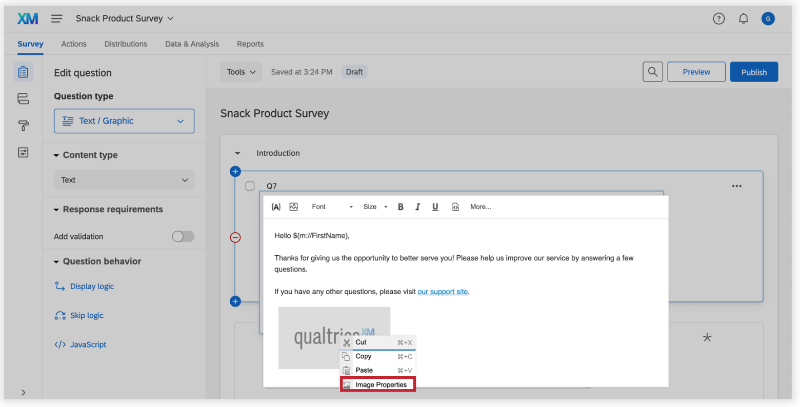
Add alternative text to uploaded images using Image Properties in the Rich Content Editor.

Add alternative text and adjust image formatting in Image Properties.
If your survey contains special requirements, such as Request Response or Force Response, you must clearly indicate this to respondents. This can be achieved by adding a special statement to the question text.
For example, if you are using Forced Response, you may add this text to the question: "This question is required to move forward."
To ensure accessibility, all meaningful content should meet a contrast ratio of at least 4.5:1 for regular text. For large text (18+ pt. or 14+ pt. bold), a minimum contrast ratio of 3:1 is acceptable. Use online contrast checkers like WebAIM to ensure compliance with accessibility standards.
Qualtrics has set black text on a white background as the default for all text options. While survey builders can customize text color and background using the Rich Content Editor, they still must follow WCAG 2.1 AA color contrast guidelines.
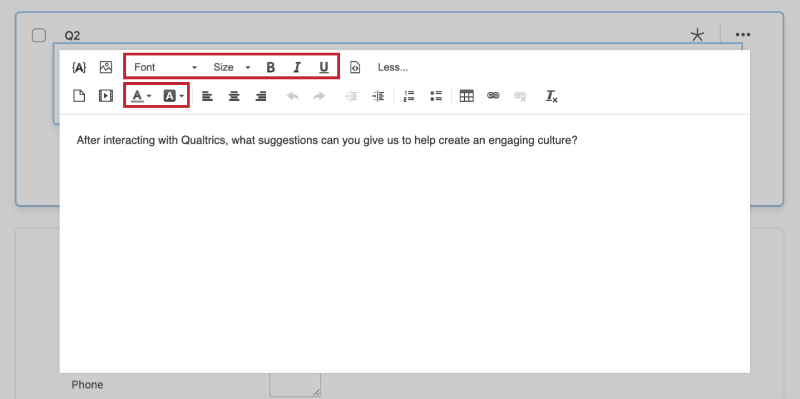
The Rich Content Editor can be used to customize text color and background.
To ensure readability and minimize distractions, opt to use a simple font. Additionally, ensure that your font size is readable. For optimal accessibility, we recommend a font size of 12 pt. or higher.
Use the Rich Content Editor to adjust font style and size. Click any question text to open the editor.
Accessibility Tip: Standardize font size, style, and spacing in the Style section of the Look and Feel menu. This sets a consistent default across your survey and reduces the need to format each text box individually.
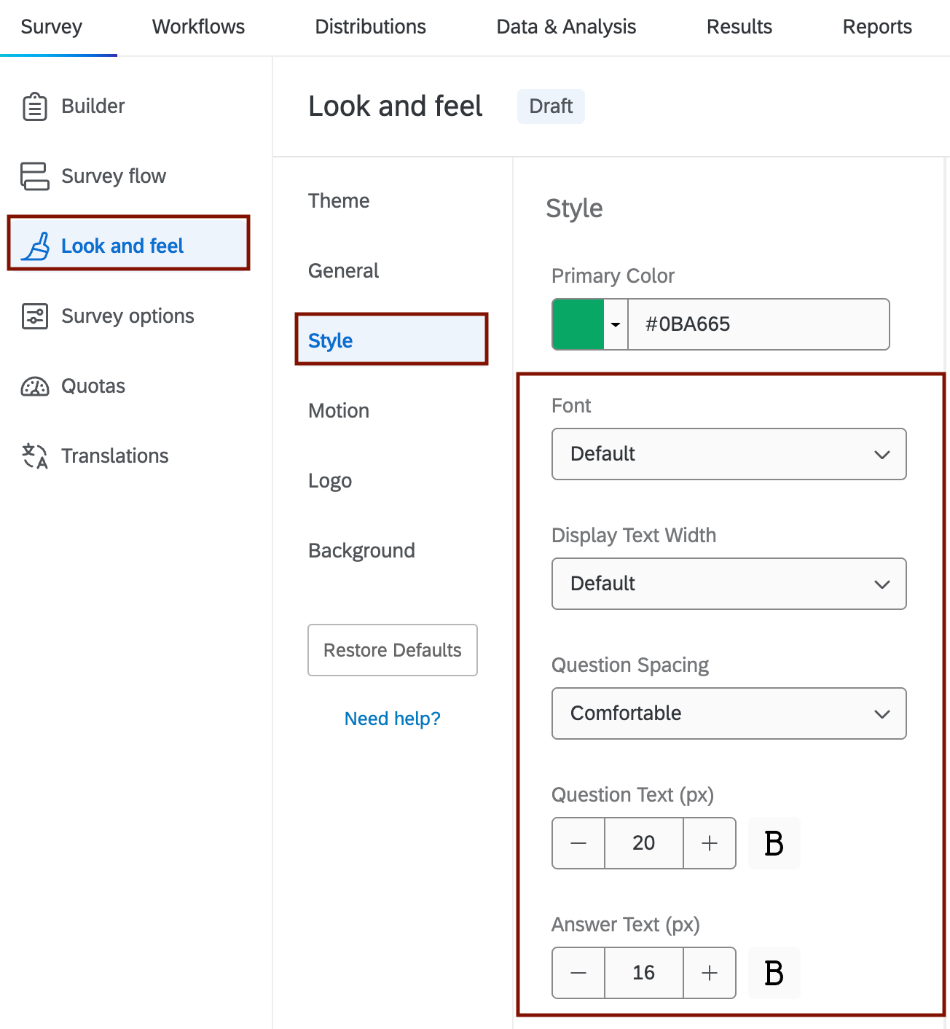
Use the Style section of the Look and Feel menu to standardize font size, style, and spacing.
Check Your Survey Accessibility
Expert Review is Qualtrics' built-in review tool that helps you create high-quality, accessible surveys. This tool scans your survey for errors, assesses its compliance with WCAG accessibility standards, and evaluates the quality of used survey elements (methodology). It also provides actionable recommendations to improve the functionality of your survey for all users.
You can access this tool from the Survey Tab.
- Click on the Tools button.
- Select the Review option.
- Choose Check Survey Accessibility.
Once the tool launches, it will display a list of potential accessibility issues along with recommendations for how to fix them. Simply click on any suggestion to jump directly to the part of your survey that needs attention.
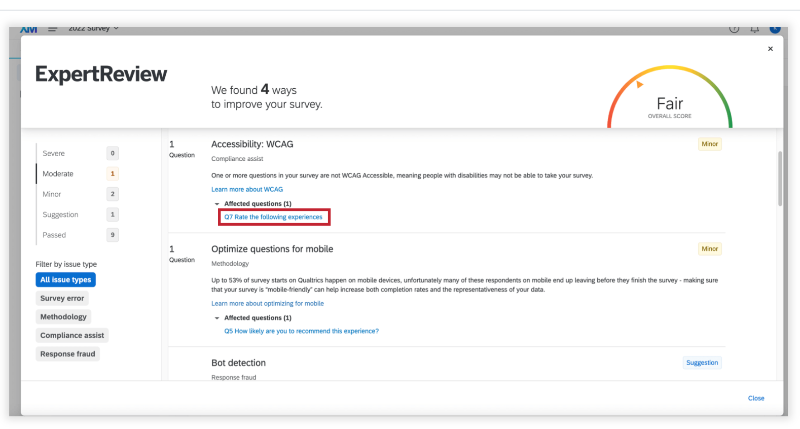
The Expert Review tool both flags accessibility concerns and recommends potential accessibility fixes.